

WordPress Admin Dashboard Made Easy: Step-by-Step for New Users
If you are new to WordPress, the first thing you will see after logging in is the WordPress admin dashboard. For many beginners, this screen feels confusing at first. There are many menus, buttons, and options, and it is not always clear what each one does.
The good news is this: once you understand the WordPress admin dashboard, managing your website becomes very easy. You do not need coding skills, and you do not need to be a technical person.
In this guide, I will explain the WordPress admin dashboard in simple words. Every section is explained step by step, exactly the way a beginner needs. By the end of this article, you will feel confident using your WordPress dashboard to manage your website.
Must Read : Want to know about Motion Graphics
What Is the wordPress admin dashboard?
The WordPress admin dashboard is the control panel of your website. This is where you manage everything, including posts, pages, images, themes, plugins, comments, and settings.
You can think of it like the dashboard of a car. From one place, you can control how your website looks and how it works.
When you log in to WordPress, you usually go to this URL:
yourwebsite.com/wp-admin
After logging in, the dashboard is the first screen you see.
How to Log In to the WordPress Admin Dashboard
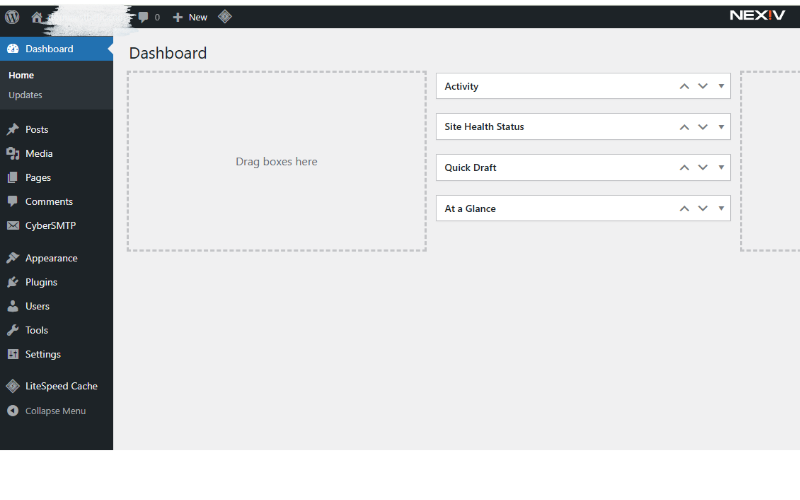
To access your WordPress dashboard, follow these steps:
First, open your browser and type your website URL followed by /wp-admin.
Second, enter your username and password.
Third, click the “Log In” button.
Once logged in, you will land on the dashboard screen.
If you ever forget your password, WordPress allows you to reset it using your email address.
Recommended: Top AI Tools for Students (Easy Guide)
Understanding the Dashboard Home Screen
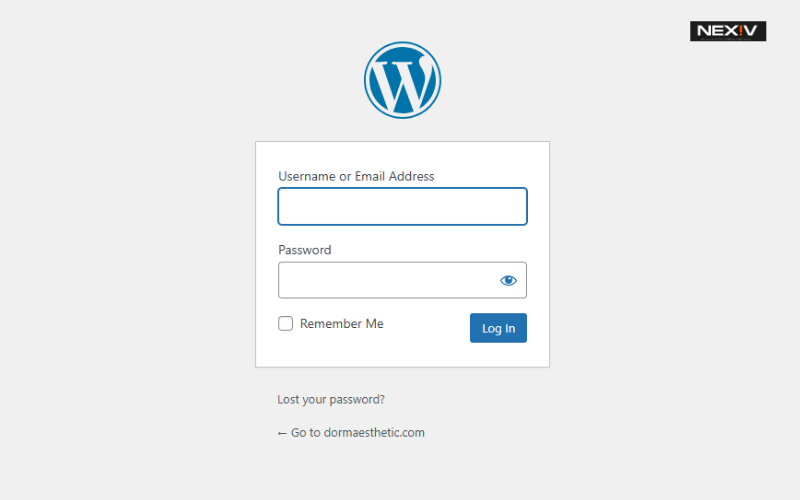
The dashboard home screen shows an overview of your website. This screen includes different boxes called widgets. These widgets give you quick information and shortcuts.
Some common widgets you may see include site health, activity, quick draft, and WordPress news. Beginners do not need to worry about all of these right away.
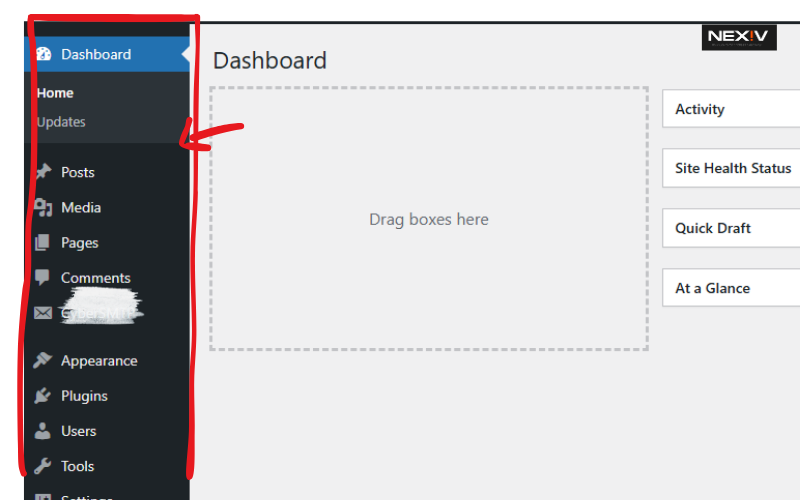
The most important thing to understand is that the real power of WordPress is in the left sidebar menu.
The Left Sidebar Menu Explained
The left sidebar menu is where you will spend most of your time. Each menu item controls a different part of your website.
Let’s go through each one slowly.
Read This: Productive Morning Routine Tips for a Successful Day
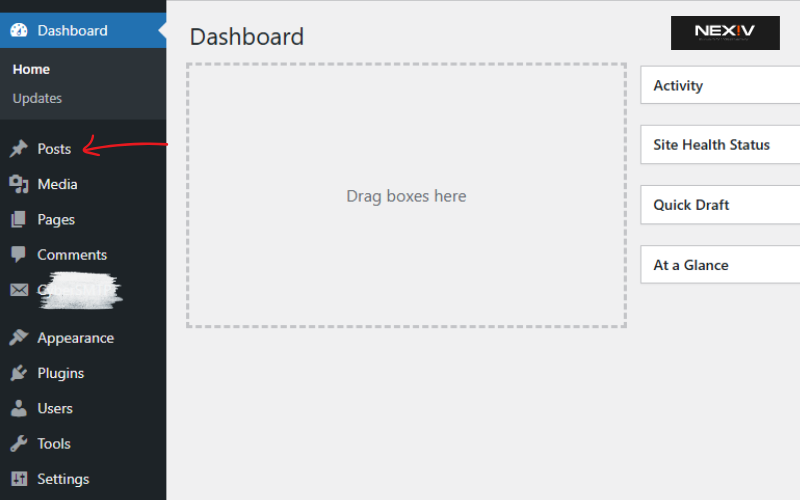
Posts: Managing Blog Content
The “Posts” section is used for blog posts. If you want to write articles, tutorials, or news updates, this is where you do it.
Inside the Posts menu, you will see options like All Posts, Add New, Categories, and Tags.
Posts are best used for content that is updated regularly, such as blogs and articles.
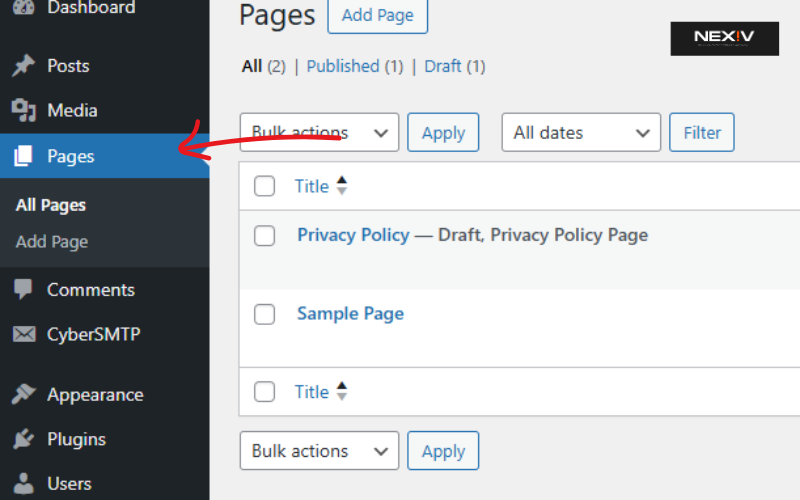
Pages: Creating Static Pages
Pages are different from posts. Pages are used for static content such as About Us, Contact, Services, or Privacy Policy pages.
Pages do not use categories or tags, and they are usually not shown by date.
If you want content that does not change often, use pages instead of posts.
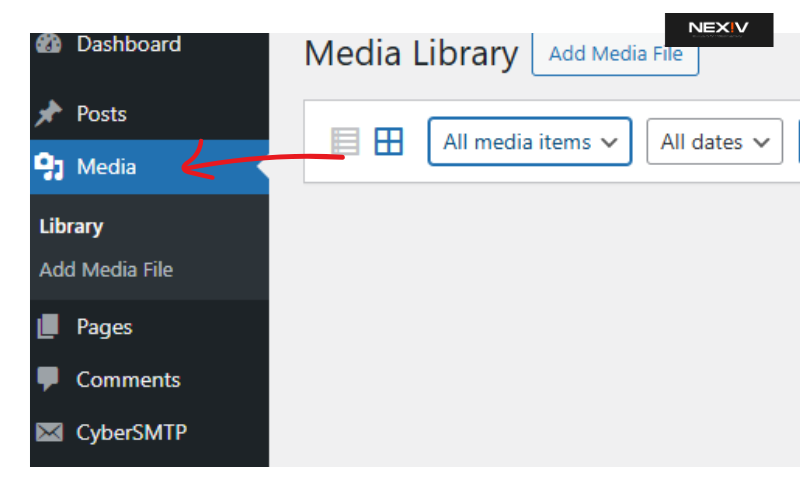
Media: Uploading Images and Videos
The Media section is your media library. This is where all your images, videos, PDFs, and other files are stored.
When you upload an image inside a post or page, it is saved here automatically.
For Pinterest-focused blogs, images are very important. Always use high-quality images and clear file names.
Recommended: Easy Ways to Find Songs in YouTube Videos
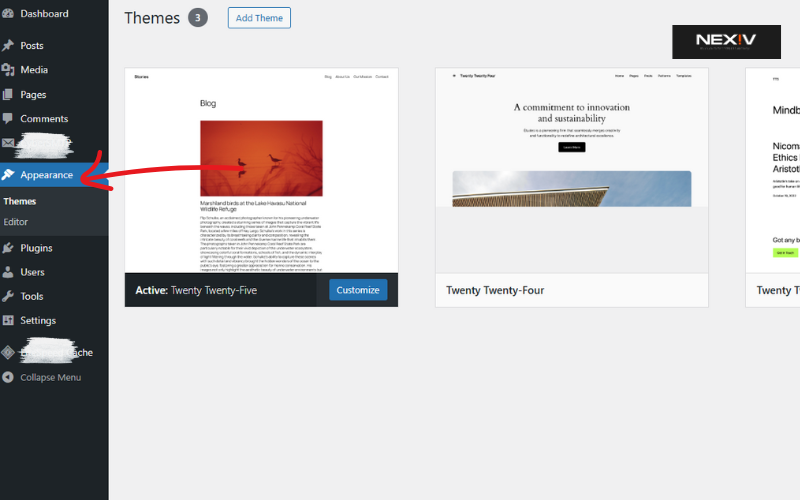
Appearance: Controlling Your Website Design
The Appearance section controls how your website looks.
From here, you can change themes, customize colors, menus, fonts, and widgets.
If you want to change the design of your website, this is the section you will use most.
Do not change themes too often on a live website, as it can affect layout and content.
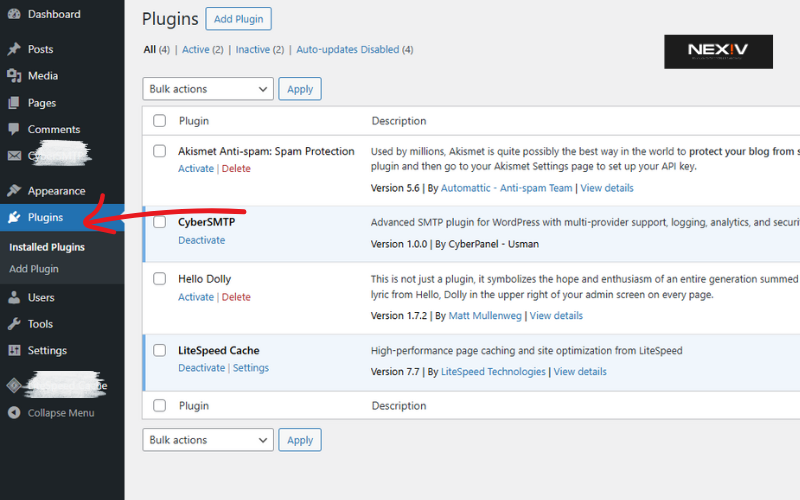
Plugins: Adding Features Without Coding
Plugins are tools that add extra features to your website. You can add contact forms, SEO tools, security features, and more using plugins.
To add a plugin, go to Plugins and click Add New. Always install plugins from trusted developers and avoid installing too many plugins.
Too many plugins can slow down your website.
Must Read: Best Image Background Remover Tools to Try
Users: Managing Website Access
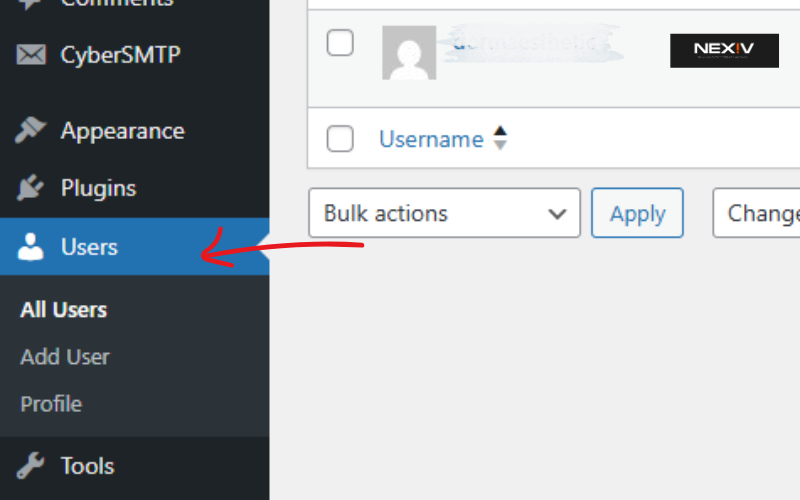
The Users section allows you to manage who can access your website.
You can add new users, assign roles, and change passwords. Common roles include Administrator, Editor, Author, and Subscriber.
For security reasons, do not give admin access to everyone.
Recommended: What Is Fiverr and How It Works for Beginners
Tools: Import and Export Content
The Tools section is used for importing or exporting website content.
If you move your website to a new host or platform, this section becomes useful. Beginners do not need to use this often.
Read This: How to Register a Domain Name Step by Step
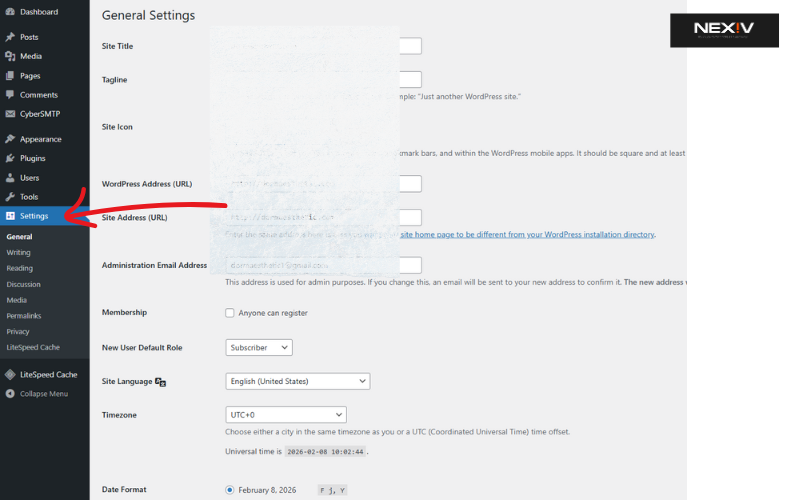
Settings: Important Website Configuration
The Settings section controls important website options such as site title, permalink structure, reading settings, and discussion settings.
One important setting for SEO is permalinks. Always use SEO-friendly permalinks for better search engine visibility.
Be careful when changing settings, especially if your website is already live.
Don’t Miss: Top Calendly Alternatives to Simplify Scheduling
How to Add Your First Blog Post
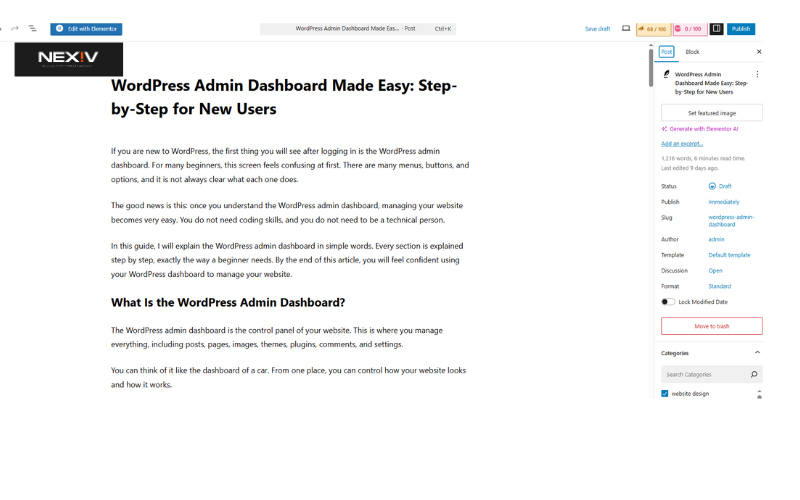
To add your first post, go to Posts and click Add New. Enter your title, write your content, and add images.
Use headings, short paragraphs, and simple language. This makes your content easy to read and Pinterest-friendly.
Always preview your post before publishing.
Quick Guide: Best Pinterest Alternatives You Should Know
Tips to Make the Dashboard Easy for Beginner
Keep your dashboard clean by removing unused plugins.
Learn one section at a time instead of everything at once.
Use helpful plugins like SEO and security tools.
Always update WordPress, themes, and plugins regularly.
These small habits will make WordPress easy and stress-free.
Hot Now: Free Pinterest Templates for Canva (Fully Customizable)
Common Beginner Mistakes to Avoid
Many beginners install too many plugins, which slows down the website. Some beginners also ignore updates, which can cause security issues.
Another common mistake is editing settings without understanding them. Always research before making major changes.
Must Read: Creative Newsletter Ideas to Boost Engagement
Why the WordPress Admin Dashboard Is Beginner Friendly
WordPress is designed for non-technical users. The dashboard layout is simple, and most tasks can be done with clicks instead of code.
This is why WordPress powers millions of websites worldwide.
Recommended: ChatGPT Hacks Every User Should Try
Frequently Asked Questions (FAQs)
Is the WordPress admin dashboard hard to learn?
No, it looks confusing at first, but once you understand the menu, it becomes very easy.
Can beginners use WordPress without coding?
Yes, WordPress is built for beginners. You do not need coding skills to manage a website.
What is the difference between posts and pages?
Posts are used for blogs and updates, while pages are used for static content like About and Contact pages.
Is it safe to install plugins?
Yes, if you install plugins from trusted sources and keep them updated.
How often should I update WordPress?
You should update WordPress, themes, and plugins whenever updates are available.
Final Thoughts
The WordPress admin dashboard may look overwhelming at first, but it is actually very beginner friendly. Once you understand the basic sections, managing your website becomes simple and enjoyable.
Take your time, explore one menu at a time, and practice regularly. With a little experience, you will feel fully in control of your WordPress website.
Thanks for the auspicious writeup. It actually was once a amusement
account it. Look advanced too more delivered agreeable from
you! However, how could we keep upp a correspondence?